이 버전의 GitHub Enterprise Server는 다음 날짜에 중단됩니다. 2026-03-17. 중요한 보안 문제에 대해서도 패치 릴리스가 이루어지지 않습니다. 더 뛰어난 성능, 향상된 보안, 새로운 기능을 위해 최신 버전의 GitHub Enterprise Server로 업그레이드합니다. 업그레이드에 대한 도움말은 GitHub Enterprise 지원에 문의하세요.

자동으로 항목 추가

필터와 일치하는 리포지토리의 항목을 자동으로 추가하도록 프로젝트의 기본 제공 워크플로를 구성할 수 있습니다.

참고 항목

Project workflow automations must be enabled by an enterprise owner in the enterprise settings page for policies for projects. For more information, see Enforcing policies for projects in your enterprise.

About automatically adding items

You can configure your project's built-in workflows to automatically add new items as they are created or updated in a repository. You can define a filter to only add items that meet your criteria.

When you enable the auto-add workflow, existing items matching your criteria will not be added. The workflow will add items when created or updated if the item matches your filter. For more information on manually adding items, see Adding items to your project.

The auto-add workflow supports a subset of filters. You can use the following filters when configuring your workflow.

QualifierPossible values
isopen, closed, merged, draft, issue, pr
label"label name"
reasoncompleted, reopened, "not planned"
assigneeGitHub username
nolabel, assignee, reason

All filters, other than no, support negation. For example, you could use -label:bug to add issues that do not have the "bug" label.

Configuring the auto-add workflow in your project

  1. Navigate to your project.

  2. In the top-right, click to open the menu.

    Screenshot showing a project's menu bar. The menu icon is highlighted with an orange outline.

  3. In the menu, click Workflows.

  4. In the "Default workflows" list, click Auto-add to project.

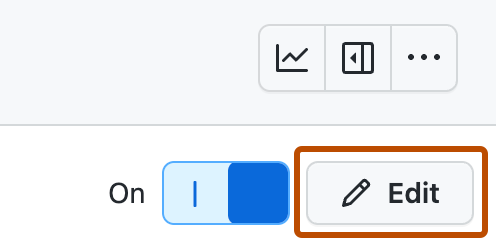
  5. To start editing the workflow, in the top right, click Edit.

    Screenshot showing the workflow menu bar. The "Edit" button is highlighted with an orange rectangle.

  6. Under "Filters", select the repository you want to add items from.

  7. Next to the repository selection, type the filter criteria you want items to match before they are automatically added to your project.

  8. To enable the new workflow, click Save and turn on workflow.

Further reading