If you want to create a new branch for your pull request but don't have write permissions to the repository, you can fork the repository first. See Creating a pull request from a fork and Forks.
When you create your pull request, you can specify which branch you want to merge your changes into. Pull requests can only be opened between two different branches.
Note
To open a pull request in a public repository, you must have write access to the head or the source branch or, for organization-owned repositories, you must be a member of the organization that owns the repository to open a pull request.
You can link a pull request to an issue to show that a fix is in progress and automatically close the issue when the pull request is merged. For more information, see Linking a pull request to an issue.
Creating the pull request
-
On GitHub, navigate to the main page of the repository.
-
In the "Branch" menu, choose the branch that contains your commits.
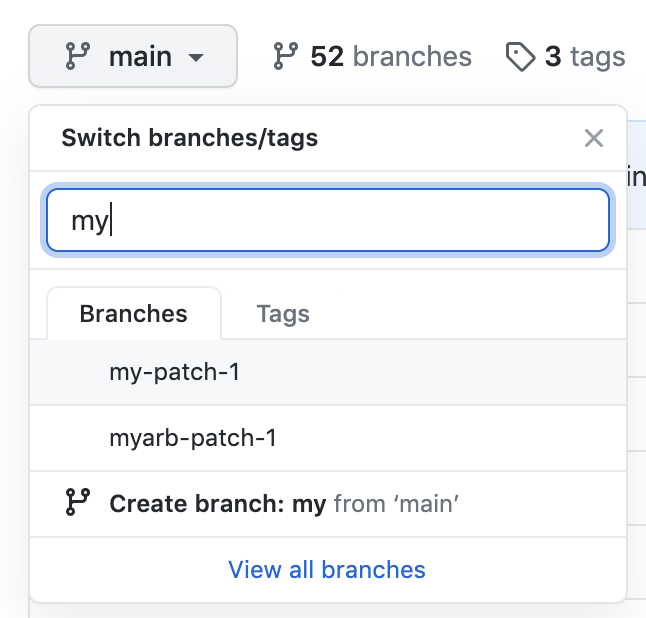
-
Above the list of files, in the yellow banner, click Compare & pull request to create a pull request for the associated branch.

-
Use the base branch dropdown menu to select the branch where you want to merge your changes. Then, use the compare branch dropdown menu to choose the topic branch where you made your changes.
-
Type a title and description for your pull request.
-
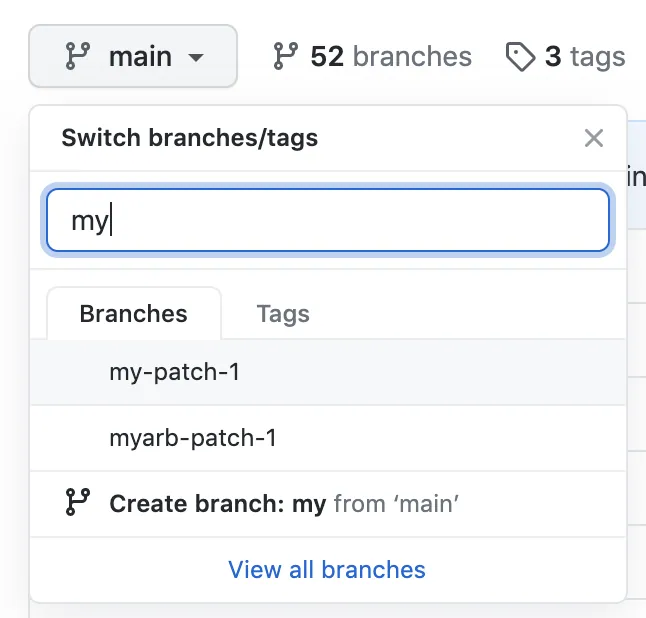
To create a pull request that is ready for review, click Create Pull Request. To create a draft pull request, use the drop-down and select Create Draft Pull Request, then click Draft Pull Request. If you are the member of an organization, you may need to request access to draft pull requests from an organization owner. See Pull requests.

Tip
After you create a pull request, you can ask a specific person to review your proposed changes. See Requesting a pull request review.
After your pull request has been reviewed, it can be merged into the repository. See Merging a pull request.
Note
To learn more about GitHub CLI, see About GitHub CLI.
To create a pull request, use the gh pr create subcommand.
gh pr create
To assign a pull request to an individual, use the --assignee or -a flags. You can use @me to self-assign the pull request.
gh pr create --assignee "@octocat"
To specify the branch into which you want the pull request merged, use the --base or -B flags. To specify the branch that contains commits for your pull request, use the --head or -H flags.
gh pr create --base my-base-branch --head my-changed-branch
To include a title and body for the new pull request, use the --title and --body flags.
gh pr create --title "The bug is fixed" --body "Everything works again"
To mark a pull request as a draft, use the --draft flag.
gh pr create --draft
To add labels or milestones to the new pull request, use the --label and --milestone flags.
gh pr create --label "bug,help wanted" --milestone octocat-milestone
To add the new pull request to a specific project, use the --project flag.
gh pr create --project octocat-project
To assign an individual or team as reviewers, use the --reviewer flag.
gh pr create --reviewer monalisa,hubot --reviewer myorg/team-name
To create the pull request in your default web browser, use the --web flag.
gh pr create --web
-
Click Preview Pull Request. GitHub Desktop opens a preview dialog that shows the diff of the changes between your current branch and the base branch.
Alternatively, to go straight to GitHub to create your pull request, select the dropdown icon and click Create Pull Request.
-
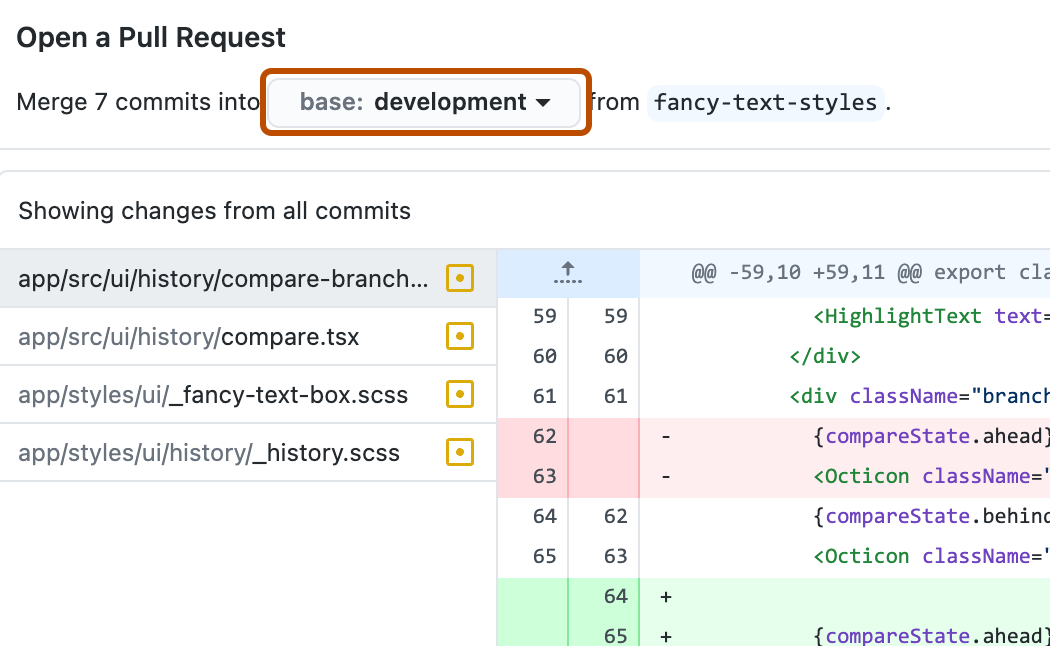
Confirm that the branch in the base: dropdown menu is the branch where you want to merge your changes.
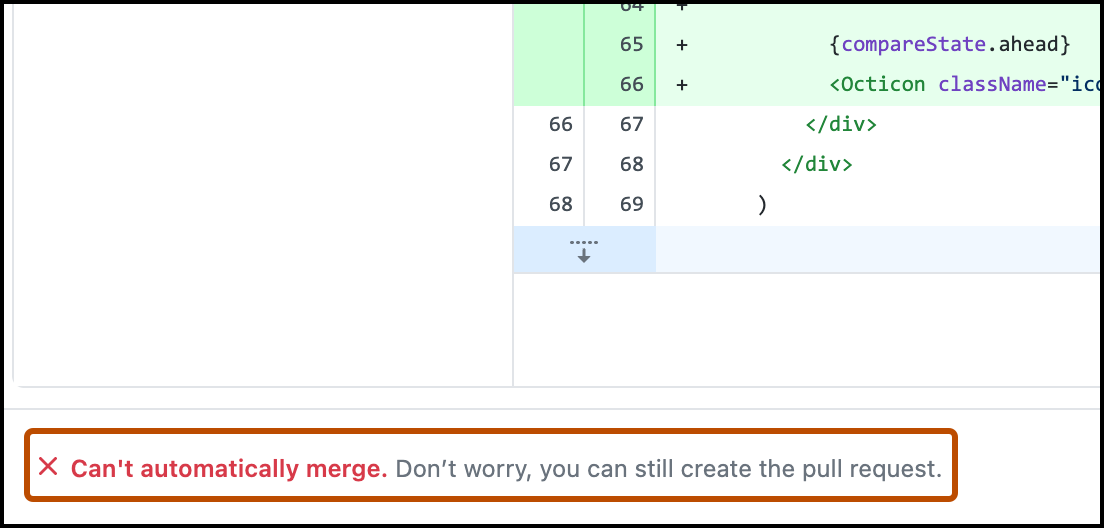
GitHub Desktop tells you whether the current branch can be automatically merged into the base branch.
-
Click Create Pull Request. GitHub Desktop opens your default browser and takes you to GitHub.
-
Type a title and description for your pull request.
-
To create a pull request that is ready for review, click Create Pull Request. To create a draft pull request, use the drop-down and select Create Draft Pull Request, then click Draft Pull Request. If you are the member of an organization, you may need to request access to draft pull requests from an organization owner. See Pull requests.


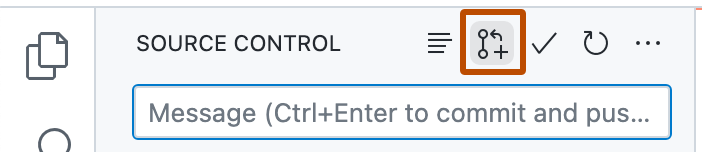
- After you commit changes to your local copy of the repository, click the Create Pull Request icon.
- Check that the local branch and repository you're merging from, and the remote branch and repository you're merging into, are correct. Then, give the pull request a title and a description.
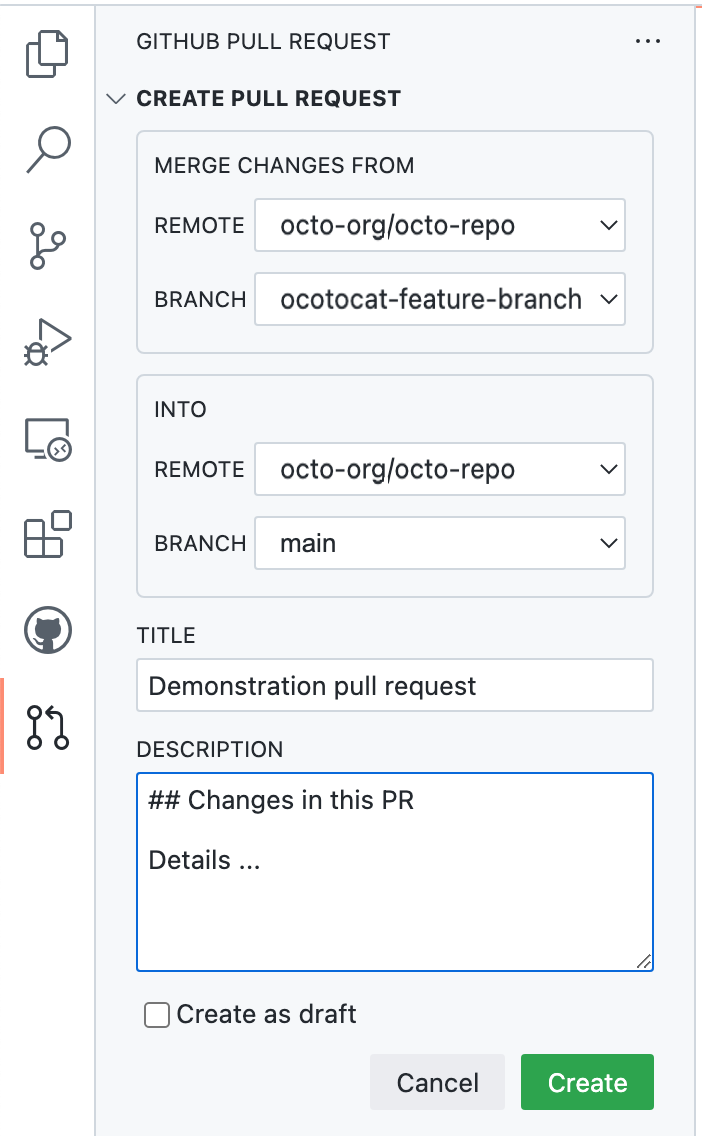
- Click Create.


For more information on creating pull requests in GitHub Codespaces, see Using GitHub Codespaces for pull requests.
Making changes to files in your pull request
After you open your pull request, you can continue changing files by adding new commits to your head branch.
You can also make changes to files on the GitHub website.
-
On GitHub, navigate to a pull request in a repository.
-
On the pull request, click Files changed.

-
Scroll down to the file you want to make changes to.
- If the pull request has a lot of files, you can use the filter to locate the file.
-
Above the file you want to change, click .

-
In the menu, click Edit file.
-
Make your changes in the editor. When you commit your change, choose to commit directly back to your head branch.

