To request a review, you need write access to the repository. You can request a review from a person or team with read access to the repository, and they receive a notification. For complete details on permissions for requesting reviews, see Pull request reviews.
Requesting reviews from collaborators and organization members
Suggested reviewers are based on git blame data. After someone reviews your pull request and you make changes, you can request another review from the same reviewer.
-
Under your repository name, click Pull requests.
-
In the list of pull requests, click the pull request that you want a specific person or team to review.
-
To request a review from a suggested person under Reviewers, next to their username, click Request.

-
Optionally, to request a review from someone other than a suggested person, click Reviewers.
If you know the name of the person or team you want a review from, type the username of the person or the name of the team you're asking to review your changes. Click their team name or username to request a review.
-
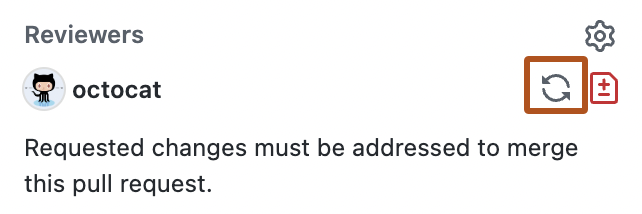
After your pull request is reviewed and you make the necessary changes, you can ask a reviewer to review your pull request again. Navigate to Reviewers in the right sidebar and click next to the reviewer's name whose review you want.


Requesting a review from GitHub Copilot
Note
Copilot features require a Copilot plan. See Plans for GitHub Copilot.
You can also request that Copilot review your code and provide feedback and suggested changes on your work. See Using GitHub Copilot code review.