Personen mit Schreibberechtigungen für ein Repository können den Markdown-Prozessor für eine GitHub Pages-Website festlegen.
GitHub Pages unterstützt zwei Markdownprozessoren: kramdown und den eigenen Markdownprozessor von GitHub, der zum Rendern von GitHub Flavored Markdown (GFM) in GitHubverwendet wird. Weitere Informationen finden Sie unter Informationen zum Schreiben und Formatieren bei GitHub.
Du kannst GitHub Flavored Markdown mit einem beliebigen Prozessor verwenden.
-
Navigiere auf GitHub zum Repository deiner Website.
-
Navigiere in deinem Repository zur Datei _config.yml.
-
Klicke zum Öffnen des Datei-Editors oben rechts in der Dateiansicht auf .

-
Suche die Zeile, die mit
markdown:beginnt, und ändere den Wert inkramdownoderGFM. Die vollständige Zeile solltemarkdown: kramdownodermarkdown: GFMlauten. -
Klicke auf Änderungen committen.
-
Gib im Feld „Commitnachricht“ eine kurze, aussagekräftige Commitnachricht ein, die die Änderung beschreibt, die Du an der Datei vorgenommen hast. Du kannst den Commit in der Commit-Mitteilung mehr als einem Autor zuordnen. Weitere Informationen finden Sie unter Einen Commit mit mehreren Autoren erstellen.
-
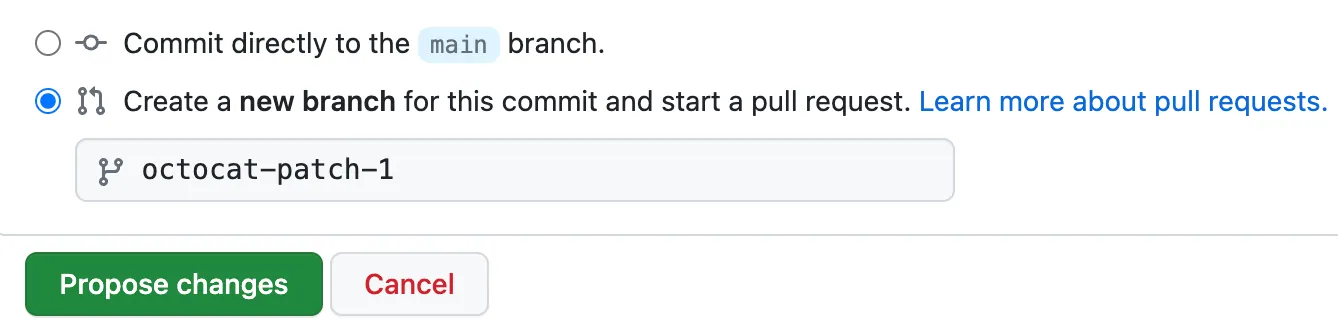
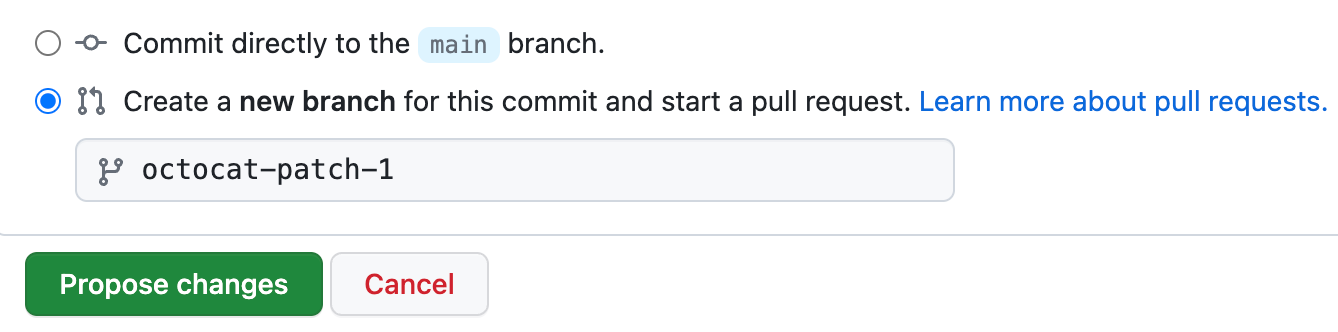
Lege unter den Commit-Mitteilungsfeldern fest, ob Du Dein Commit zum aktuellen Branch oder zu einem neuen Branch hinzufügen möchten. Wenn dein aktueller Branch als Standardbranch festgelegt ist, solltest du einen neuen Branch für deinen Commit und dann einen Pull Request erstellen. Weitere Informationen finden Sie unter Erstellen eines Pull Requests.
-
Klicke auf Änderungen committen oder Änderungen vorschlagen.