이 버전의 GitHub Enterprise Server는 다음 날짜에 중단됩니다. 2026-03-17. 중요한 보안 문제에 대해서도 패치 릴리스가 이루어지지 않습니다. 더 뛰어난 성능, 향상된 보안, 새로운 기능을 위해 최신 버전의 GitHub Enterprise Server로 업그레이드합니다. 업그레이드에 대한 도움말은 GitHub Enterprise 지원에 문의하세요.

조직 project (classic)에 대한 팀 액세스 관리

조직 소유자 또는 프로젝트(클래식) 관리자는 조직 소유의 프로젝트(클래식)에 대해 팀에 액세스를 부여할 수 있습니다.

참고 항목

  • Projects, the all-new projects experience, is now available. For more information about Projects, see About Projects.
  • You can only create a new project (classic) for an organization, repository, or user that already has at least one project (classic). If you're unable to create a project (classic), create a project instead.

경고

  • You can change a team's permission level if the team has direct access to a project (classic). If the team's access to the project (classic) is inherited from a parent team, you must change the parent team's access to the project (classic).
  • If you add or remove project (classic) access for a parent team, each of that parent's child teams will also receive or lose access to the project (classic). For more information, see About organization teams.

Giving a team access to a project (classic)

You can give an entire team the same permission level to a project (classic).

참고 항목

If a person has multiple avenues of access to an organization project (classic) (individually, through a team, or as an organization member), the highest project (classic) permission level overrides lower permission levels. For example, if an organization owner has given a team read permissions to a project (classic), and a project (classic) admin gives one of the team members admin permissions to that board as an individual collaborator, that person would have admin permissions to the project (classic). For more information see, Project (classic) permissions for an organization.

  1. In the upper-right corner of GitHub, click your profile picture, then click Organizations.

  2. Click the name of your organization.

  3. Under your organization name, click Projects.

    Screenshot of the horizontal navigation bar for an organization. A tab, labeled with a table icon and "Projects," is outlined in dark orange.

  4. Click Projects (classic).

  5. In the projects list, click the name of the project (classic).

  6. On the top-right side of the project (classic), click Menu.

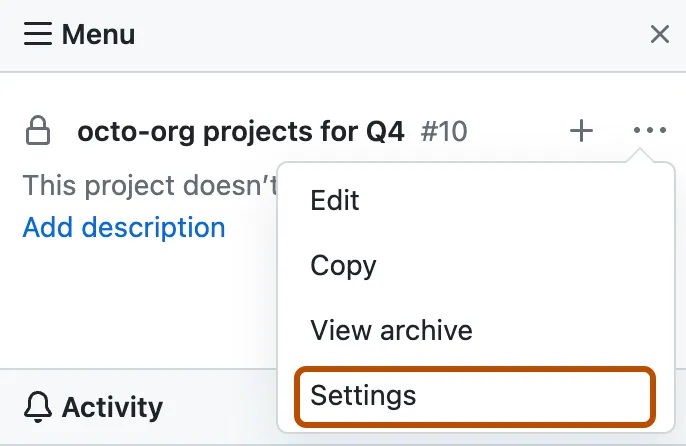
  7. Click , then click Settings.

    Screenshot showing the project menu. The settings option is highlighted with an orange outline.

  8. In the left sidebar, click Teams.

  9. To add a team, click Add a team: Select team. Then, choose a team from the dropdown menu or search for the team you'd like to add.

  10. Next to the team name, use the dropdown menu to select the desired permission level: Read, Write, or Admin.

Configuring a team's access to a project (classic)

If a team's access to a project (classic) is inherited from a parent team, you must change the parent team's access to the project (classic) to update access to the child teams.

  1. In the upper-right corner of GitHub, click your profile picture, then click Organizations.

  2. Click the name of your organization.

  3. Under your organization name, click Teams.

    Screenshot of the horizontal navigation bar for an organization. A tab, labeled with the people icon and "Teams," is outlined in dark orange.

  4. Click the name of the team.

  5. Above the team's conversation, click Projects.

    Screenshot of the main page for a team. In the horizontal navigation bar, the "Projects" tab is outlined in dark orange.

  6. To change permissions levels, to the right of the project (classic) you want to update, use the permission level dropdown menu.

Further reading