이 버전의 GitHub Enterprise Server는 다음 날짜에 중단됩니다. 2026-03-17. 중요한 보안 문제에 대해서도 패치 릴리스가 이루어지지 않습니다. 더 뛰어난 성능, 향상된 보안, 새로운 기능을 위해 최신 버전의 GitHub Enterprise Server로 업그레이드합니다. 업그레이드에 대한 도움말은 GitHub Enterprise 지원에 문의하세요.

Jekyll을 사용하여 GitHub Pages 사이트에 테마 추가

테마를 추가하고 사용자 지정하여 Jekyll 사이트를 개인 설정할 수 있습니다.

누가 이 기능을 사용할 수 있나요?

GitHub Pages은(는) 조직의 GitHub Free 및 GitHub Free이(가) 있는 퍼블릭 리포지토리와 GitHub Pro, GitHub Team, GitHub Enterprise Cloud 및 GitHub Enterprise Server의 퍼블릭 및 프라이빗 리포지토리에서 사용할 수 있습니다.

참고 항목

While the github-pages gem remains supported for some workflows, GitHub Actions is now the recommended approach for deploying and automating GitHub Pages sites.

People with write permissions for a repository can add a theme to a GitHub Pages site using Jekyll.

If you are publishing from a branch, changes to your site are published automatically when the changes are merged into your site's publishing source. If you are publishing from a custom GitHub Actions workflow, changes are published whenever your workflow is triggered (typically by a push to the default branch). If you want to preview your changes first, you can make the changes locally instead of on GitHub. Then, test your site locally. For more information, see Testing your GitHub Pages site locally with Jekyll.

Supported themes

Out of the box, the following themes are supported:

The jekyll-remote-theme Jekyll plugin is also available and lets you load other themes.

Adding a theme

  1. On GitHub, navigate to your site's repository.

  2. Navigate to the publishing source for your site. For more information, see Configuring a publishing source for your GitHub Pages site.

  3. Navigate to _config.yml.

  4. In the upper right corner of the file view, click to open the file editor.

    Screenshot of a file. In the header, a button, labeled with a pencil icon, is outlined in dark orange.

  5. Add a new line to the file for the theme name.

    • To use a supported theme, type theme: THEME-NAME, replacing THEME-NAME with the name of the theme as shown in the _config.yml of the theme's repository (most themes follow a jekyll-theme-NAME naming convention). For a list of supported themes, see Supported themes on the GitHub Pages site. For example, to select the Minimal theme, type theme: jekyll-theme-minimal.
    • To use any other Jekyll theme hosted on GitHub, type remote_theme: THEME-NAME, replacing THEME-NAME with the name of the theme as shown in the README of the theme's repository.
  6. Click Commit changes...

  7. In the "Commit message" field, type a short, meaningful commit message that describes the change you made to the file. You can attribute the commit to more than one author in the commit message. For more information, see Creating a commit with multiple authors.

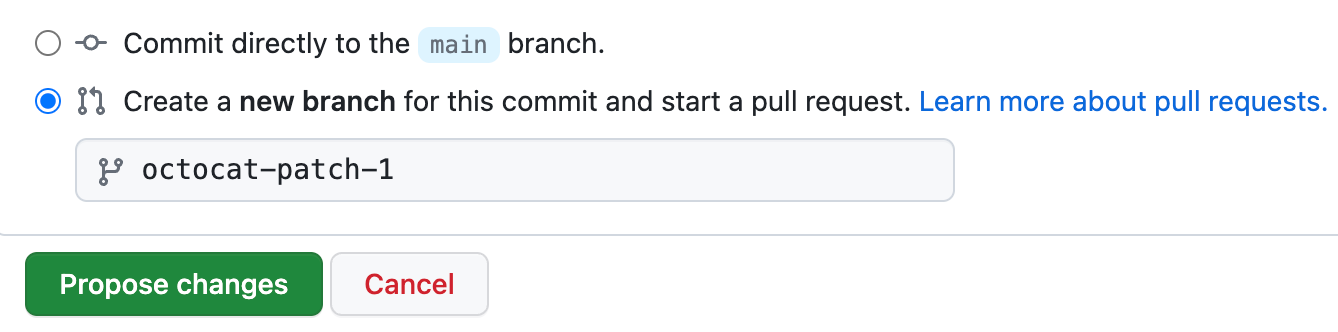
  8. Below the commit message fields, decide whether to add your commit to the current branch or to a new branch. If your current branch is the default branch, you should choose to create a new branch for your commit and then create a pull request. For more information, see Creating a pull request.

    Screenshot of a GitHub pull request showing a radio button to commit directly to the main branch or to create a new branch. New branch is selected.

  9. Click Commit changes or Propose changes.

Customizing your theme's CSS

Your theme's source repository may offer some help in customizing your theme. For example, see Minimal's README.

  1. On GitHub, navigate to your site's repository.

  2. Navigate to the publishing source for your site. For more information, see Configuring a publishing source for your GitHub Pages site.

  3. Create a new file called /assets/css/style.scss.

  4. Add the following content to the top of the file:

    ---
    ---
    
    @import "{{ site.theme }}";
    
  5. Add any custom CSS or Sass (including imports) you'd like immediately after the @import line.

Customizing your theme's HTML layout

Your theme's source repository may offer some help in customizing your theme. For example, see Minimal's README.

  1. On GitHub, navigate to your theme's source repository. For example, the source repository for Minimal is https://github.com/pages-themes/minimal.
  2. In the _layouts folder, navigate to your theme's _default.html file.
  3. Copy the contents of the file.
  4. On GitHub, navigate to your site's repository.
  5. Navigate to the publishing source for your site. For more information, see Configuring a publishing source for your GitHub Pages site.
  6. Create a file called _layouts/default.html.
  7. Paste the default layout content you copied earlier.
  8. Customize the layout as you'd like.

Further reading