# Creating a pull request
Create a pull request to propose changes to the code in a repository.
If you want to create a new branch for your pull request but don't have write permissions to the repository, you can fork the repository first. See [Creating a pull request from a fork](/es/pull-requests/how-tos/create-pull-requests/creating-a-pull-request-from-a-fork) and [Forks](/es/pull-requests/reference/forks).
When you create your pull request, you can specify which branch you want to merge your changes into. Pull requests can only be opened between two different branches.
> \[!NOTE]
> Para abrir una solicitud de cambios en un repositorio público, debes tener acceso de escritura a la rama principal activa o a la rama de origen, o en caso de los repositorios propiedad de una organización, debes ser miembro de la organización propietaria del repositorio para hacerlo.
Puede vincular una solicitud de incorporación de cambios a un problema para mostrar que una corrección está en curso y cerrar automáticamente el problema cuando se combina la solicitud de incorporación de cambios. Para más información, consulta [Vincular una solicitud de cambios a una propuesta](/es/issues/tracking-your-work-with-issues/using-issues/linking-a-pull-request-to-an-issue).
## Creating the pull request
1. En GitHub, navegue hasta la página principal del repositorio.
2. In the "Branch" menu, choose the branch that contains your commits.

3. Encima de la lista de archivos, en el banner amarillo, haz clic en **Comparar y solicitud de incorporación de cambios** para crear una solicitud de incorporación de cambios para la rama asociada.

4. Use the *base* branch dropdown menu to select the branch where you want to merge your changes. Then, use the *compare* branch dropdown menu to choose the topic branch where you made your changes.
5. Escribe un título y una descripción para tu solicitud de extracción.
6. Para crear una solicitud de incorporación de cambios que esté lista para revisión, haga clic en **Crear solicitud de incorporación de cambios**.
Para crear un borrador de una solicitud de incorporación de cambios, use el menú desplegable y seleccione **Crear solicitud de incorporación de cambios de borrador**, y después haga clic en **Solicitud de incorporación de cambios de borrador**. Si eres miembro de una organización, es posible que tengas que solicitar acceso a borradores de solicitudes de incorporación de cambios de un propietario de la organización. Consulta [Pull requests](/es/pull-requests/collaborating-with-pull-requests/proposing-changes-to-your-work-with-pull-requests/about-pull-requests#draft-pull-requests).
> \[!TIP]
> Después de crear una solicitud de cambios, puedes pedir a una persona concreta que [revise los cambios propuestos](/es/pull-requests/collaborating-with-pull-requests/reviewing-changes-in-pull-requests/reviewing-proposed-changes-in-a-pull-request). Para más información, consulta [Requesting a pull request review](/es/pull-requests/collaborating-with-pull-requests/proposing-changes-to-your-work-with-pull-requests/requesting-a-pull-request-review).
After your pull request has been reviewed, it can be merged into the repository. See [Merging a pull request](/es/pull-requests/how-tos/merge-and-close-pull-requests/merging-a-pull-request).
> \[!NOTE]
> Para más información sobre GitHub CLI, consulta [Acerca de GitHub CLI](/es/github-cli/github-cli/about-github-cli).
To create a pull request, use the `gh pr create` subcommand.
```shell
gh pr create
```
To assign a pull request to an individual, use the `--assignee` or `-a` flags. You can use `@me` to self-assign the pull request.
```shell
gh pr create --assignee "@octocat"
```
To specify the branch into which you want the pull request merged, use the `--base` or `-B` flags. To specify the branch that contains commits for your pull request, use the `--head` or `-H` flags.
```shell
gh pr create --base my-base-branch --head my-changed-branch
```
To include a title and body for the new pull request, use the `--title` and `--body` flags.
```shell
gh pr create --title "The bug is fixed" --body "Everything works again"
```
To mark a pull request as a draft, use the `--draft` flag.
```shell
gh pr create --draft
```
To add labels or milestones to the new pull request, use the `--label` and `--milestone` flags.
```shell
gh pr create --label "bug,help wanted" --milestone octocat-milestone
```
To add the new pull request to a specific project, use the `--project` flag.
```shell
gh pr create --project octocat-project
```
To assign an individual or team as reviewers, use the `--reviewer` flag.
```shell
gh pr create --reviewer monalisa,hubot --reviewer myorg/team-name
```
To create the pull request in your default web browser, use the `--web` flag.
```shell
gh pr create --web
```
1. Click **Preview Pull Request**. GitHub Desktop opens a preview dialog that shows the diff of the changes between your current branch and the base branch.
Alternatively, to go straight to GitHub to create your pull request, select the dropdown icon and click **Create Pull Request**.
2. Confirm that the branch in the **base:** dropdown menu is the branch where you want to merge your changes.

GitHub Desktop tells you whether the current branch can be automatically merged into the base branch.

3. Click **Create Pull Request**. GitHub Desktop opens your default browser and takes you to GitHub.
4. Escribe un título y una descripción para tu solicitud de extracción.
5. Para crear una solicitud de incorporación de cambios que esté lista para revisión, haga clic en **Crear solicitud de incorporación de cambios**.
Para crear un borrador de una solicitud de incorporación de cambios, use el menú desplegable y seleccione **Crear solicitud de incorporación de cambios de borrador**, y después haga clic en **Solicitud de incorporación de cambios de borrador**. Si eres miembro de una organización, es posible que tengas que solicitar acceso a borradores de solicitudes de incorporación de cambios de un propietario de la organización. Consulta [Pull requests](/es/pull-requests/collaborating-with-pull-requests/proposing-changes-to-your-work-with-pull-requests/about-pull-requests#draft-pull-requests).
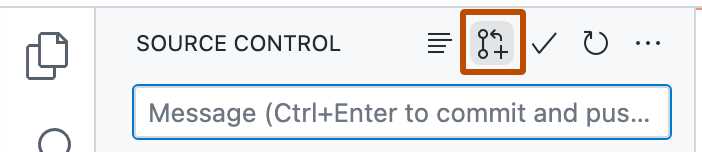
1. After you commit changes to your local copy of the repository, click the **Create Pull Request** icon.
2. Check that the local branch and repository you're merging from, and the remote branch and repository you're merging into, are correct. Then, give the pull request a title and a description.
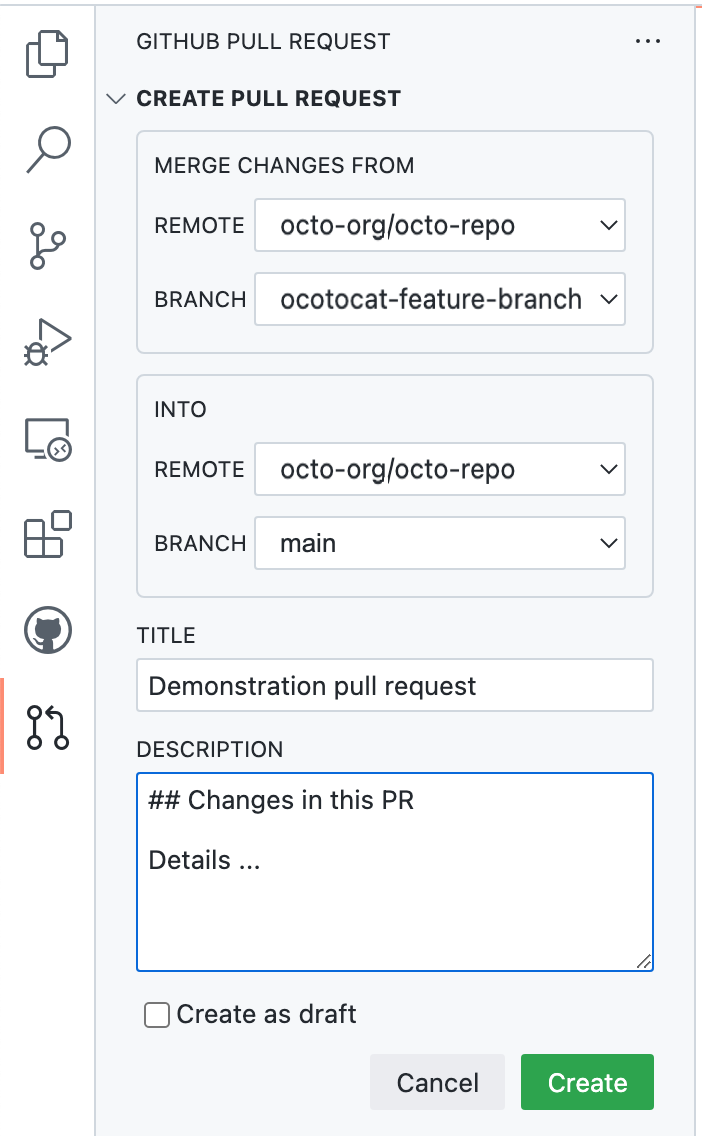
3. Click **Create**.
For more information on creating pull requests in GitHub Codespaces, see [Uso de GitHub Codespaces para solicitudes de incorporación de cambios](/es/codespaces/developing-in-a-codespace/using-github-codespaces-for-pull-requests).
## Making changes to files in your pull request
After you open your pull request, you can continue changing files by adding new commits to your head branch.
## Further reading
* [Creating a pull request from a fork](/es/pull-requests/how-tos/create-pull-requests/creating-a-pull-request-from-a-fork)
* [Keeping your pull request in sync with the base branch](/es/pull-requests/how-tos/create-pull-requests/keeping-your-pull-request-in-sync-with-the-base-branch)
* [Changing the base branch of a pull request](/es/pull-requests/how-tos/create-pull-requests/changing-the-base-branch-of-a-pull-request)
* [Crear un problema](/es/issues/tracking-your-work-with-issues/using-issues/creating-an-issue)
* [Asignación de problemas y solicitudes de incorporación de cambios a otros usuarios de GitHub](/es/issues/tracking-your-work-with-issues/using-issues/assigning-issues-and-pull-requests-to-other-github-users)
* [Escribir en GitHub](/es/get-started/writing-on-github)