# Fork a repository

Fork a repository on GitHub to propose changes, collaborate on projects, and manage your own copy of the codebase.

## About forks

Forking a repository lets you propose changes to a project without affecting the upstream repository. See [About forks](/en/pull-requests/get-started/about-forks).

## Prerequisites

If you haven't already, set up Git and authentication with GitHub.com from Git. See [Set up Git](/en/get-started/git-basics/set-up-git).

## Forking a repository

<div class="ghd-tool webui">

You might fork a project to propose changes to the upstream repository. In this case, it's good practice to sync your fork with the upstream repository regularly. To do this, you'll need to use Git on the command line. You can practice setting the upstream repository using the same [octocat/Spoon-Knife](https://github.com/octocat/Spoon-Knife) repository you just forked.

1. On GitHub, navigate to the [octocat/Spoon-Knife](https://github.com/octocat/Spoon-Knife) repository.
2. In the top-right corner of the page, click **Fork**.
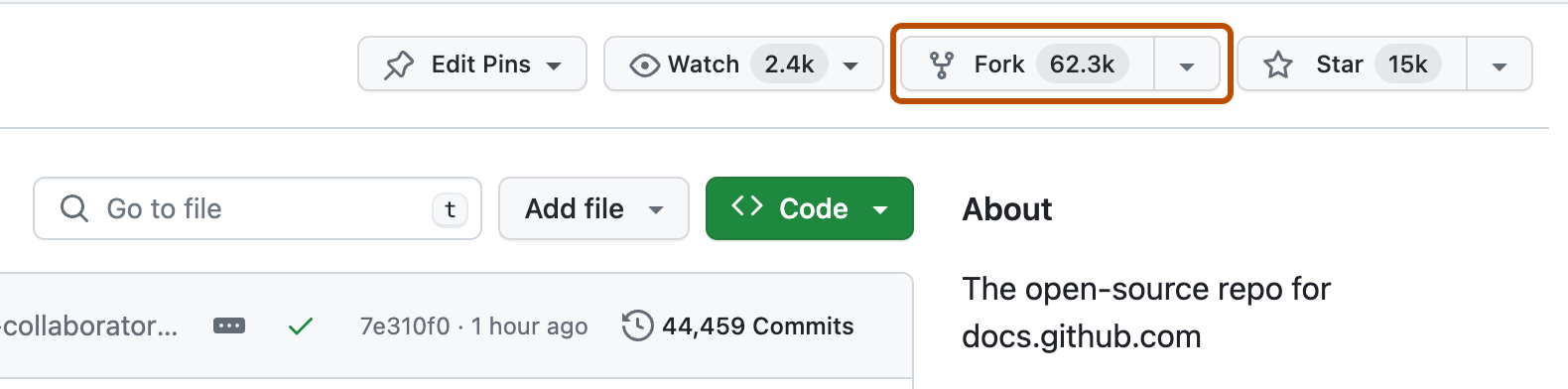
   ![Screenshot of the main page of repository. A button, labeled with a fork icon and "Fork 59.3k," is outlined in dark orange.](/assets/images/help/repository/fork-button.png)
3. Under "Owner," select the dropdown menu and click an owner for the forked repository.
4. By default, forks are named the same as their upstream repositories. Optionally, in the "Repository name" field, type a different name to distinguish your fork.
5. Optionally, in the "Description" field, type a description of your fork.
6. Optionally, select **Copy the DEFAULT branch only**.

   For many forking scenarios, such as contributing to open-source projects, you only need to copy the default branch. If you do not select this option, all branches will be copied into the new fork.
7. Click **Create fork**.

> \[!NOTE]
> If you want to copy additional branches from the upstream repository, you can do so from the **Branches** page. See [Managing branches within your repository](/en/pull-requests/how-tos/create-pull-requests/creating-and-deleting-branches-within-your-repository).

</div>

<div class="ghd-tool cli">

> \[!NOTE]
> To learn more about GitHub CLI, see [About GitHub CLI](/en/github-cli/github-cli/about-github-cli).

To create a fork of a repository, use the `gh repo fork` subcommand.

```shell
gh repo fork REPOSITORY
```

To create the fork in an organization, use the `--org` flag.

```shell
gh repo fork REPOSITORY --org "octo-org"
```

</div>

<div class="ghd-tool desktop">

You can fork a repository on GitHub.com or in GitHub Desktop. For information about forking on GitHub.com, see [the web browser version of this article](/en/pull-requests/how-tos/work-with-forks/fork-a-repo?tool=webui).

In GitHub Desktop, if you clone a repository that you do not have write access to, and then attempt to push a change to the repository, a fork will be created for you.

1. In the **File** menu, click **Clone Repository**.

   <div class="ghd-tool mac">

   ![Screenshot of the menu bar on a Mac. The "File" dropdown menu is expanded, and the "Clone Repository" option is highlighted with an orange outline.](/assets/images/help/desktop/clone-file-menu-mac.png)

   </div>

   <div class="ghd-tool windows">

   ![Screenshot of the "GitHub Desktop" menu bar on Windows. The "File" dropdown menu is expanded, and the "Clone Repository" option is outlined in orange.](/assets/images/help/desktop/clone-file-menu-windows.png)

   </div>

2. Click the tab that corresponds to the location of the repository you want to clone. In this example, we click on the URL tab.

   ![Screenshot of the "URL" tab of the "Clone a repository" window. The "GitHub.com", "GitHub Enterprise" and "URL" tabs are outlined in dark orange.](/assets/images/help/desktop/choose-repository-location-url-tab-windows.png)

3. Enter the url or path of the repository you want to clone.

   ![Screenshot of the "URL" tab of the "Clone a repository" window. The input containing "octocat/Spoon-Knife" is highlighted with an orange outline.](/assets/images/help/desktop/clone-a-repository-url-tab-name-input.png)

4. To select the local directory into which you want to clone the repository, next to the "Local Path" field, click **Choose...** and navigate to the directory.

   ![Screenshot of the "URL" tab of the "Clone a repository" window. A button, labeled "Choose", is highlighted with an orange outline.](/assets/images/help/desktop/clone-choose-button-url-windows.png)

5. At the bottom of the "Clone a Repository" window, click **Clone**.

6. To create a fork, attempt to push a change to the repository. For example, create a new branch and publish it. A prompt will appear asking if you want to fork this repository.

   ![Screenshot of the "Create a fork prompt" window. A button, labeled "Fork this repository", is highlighted with an orange outline.](/assets/images/help/desktop/create-fork-button-windows.png)

7. Read the information in the "How are you planning to use this fork?" window.
   * If you plan to use this fork for contributing to the original upstream repository, click **To contribute to the parent project**.
   * If you plan to use this fork for a project not connected to the upstream, click **For my own purposes**.

8. Click **Continue**.

</div>

<div class="ghd-tool webui">

## Cloning your forked repository

You now have a fork of the Spoon-Knife repository, but you do not have the files from that repository on your computer.

1. On GitHub, navigate to **your fork** of the Spoon-Knife repository.

2. Above the list of files, click **<svg version="1.1" width="16" height="16" viewBox="0 0 16 16" class="octicon octicon-code" aria-label="code" role="img"><path d="m11.28 3.22 4.25 4.25a.75.75 0 0 1 0 1.06l-4.25 4.25a.749.749 0 0 1-1.275-.326.749.749 0 0 1 .215-.734L13.94 8l-3.72-3.72a.749.749 0 0 1 .326-1.275.749.749 0 0 1 .734.215Zm-6.56 0a.751.751 0 0 1 1.042.018.751.751 0 0 1 .018 1.042L2.06 8l3.72 3.72a.749.749 0 0 1-.326 1.275.749.749 0 0 1-.734-.215L.47 8.53a.75.75 0 0 1 0-1.06Z"></path></svg> Code**.

   ![Screenshot of the list of files on the landing page of a repository. The "Code" button is highlighted with a dark orange outline.](/assets/images/help/repository/code-button.png)

3. Copy the URL for the repository.

   * To clone the repository using HTTPS, under "HTTPS", click <svg version="1.1" width="16" height="16" viewBox="0 0 16 16" class="octicon octicon-copy" aria-label="Copy to clipboard" role="img"><path d="M0 6.75C0 5.784.784 5 1.75 5h1.5a.75.75 0 0 1 0 1.5h-1.5a.25.25 0 0 0-.25.25v7.5c0 .138.112.25.25.25h7.5a.25.25 0 0 0 .25-.25v-1.5a.75.75 0 0 1 1.5 0v1.5A1.75 1.75 0 0 1 9.25 16h-7.5A1.75 1.75 0 0 1 0 14.25Z"></path><path d="M5 1.75C5 .784 5.784 0 6.75 0h7.5C15.216 0 16 .784 16 1.75v7.5A1.75 1.75 0 0 1 14.25 11h-7.5A1.75 1.75 0 0 1 5 9.25Zm1.75-.25a.25.25 0 0 0-.25.25v7.5c0 .138.112.25.25.25h7.5a.25.25 0 0 0 .25-.25v-7.5a.25.25 0 0 0-.25-.25Z"></path></svg>.
   * To clone the repository using an SSH key, including a certificate issued by your organization's SSH certificate authority, click **SSH**, then click <svg version="1.1" width="16" height="16" viewBox="0 0 16 16" class="octicon octicon-copy" aria-label="Copy to clipboard" role="img"><path d="M0 6.75C0 5.784.784 5 1.75 5h1.5a.75.75 0 0 1 0 1.5h-1.5a.25.25 0 0 0-.25.25v7.5c0 .138.112.25.25.25h7.5a.25.25 0 0 0 .25-.25v-1.5a.75.75 0 0 1 1.5 0v1.5A1.75 1.75 0 0 1 9.25 16h-7.5A1.75 1.75 0 0 1 0 14.25Z"></path><path d="M5 1.75C5 .784 5.784 0 6.75 0h7.5C15.216 0 16 .784 16 1.75v7.5A1.75 1.75 0 0 1 14.25 11h-7.5A1.75 1.75 0 0 1 5 9.25Zm1.75-.25a.25.25 0 0 0-.25.25v7.5c0 .138.112.25.25.25h7.5a.25.25 0 0 0 .25-.25v-7.5a.25.25 0 0 0-.25-.25Z"></path></svg>.
   * To clone a repository using GitHub CLI, click **GitHub CLI**, then click <svg version="1.1" width="16" height="16" viewBox="0 0 16 16" class="octicon octicon-copy" aria-label="Copy to clipboard" role="img"><path d="M0 6.75C0 5.784.784 5 1.75 5h1.5a.75.75 0 0 1 0 1.5h-1.5a.25.25 0 0 0-.25.25v7.5c0 .138.112.25.25.25h7.5a.25.25 0 0 0 .25-.25v-1.5a.75.75 0 0 1 1.5 0v1.5A1.75 1.75 0 0 1 9.25 16h-7.5A1.75 1.75 0 0 1 0 14.25Z"></path><path d="M5 1.75C5 .784 5.784 0 6.75 0h7.5C15.216 0 16 .784 16 1.75v7.5A1.75 1.75 0 0 1 14.25 11h-7.5A1.75 1.75 0 0 1 5 9.25Zm1.75-.25a.25.25 0 0 0-.25.25v7.5c0 .138.112.25.25.25h7.5a.25.25 0 0 0 .25-.25v-7.5a.25.25 0 0 0-.25-.25Z"></path></svg>.

     ![Screenshot of the "Code" dropdown menu. To the right of the HTTPS URL for the repository, a copy icon is outlined in dark orange.](/assets/images/help/repository/https-url-clone-cli.png)

4. Open your terminal or Git Bash.

5. Change the current working directory to the location where you want the cloned directory.

6. Type `git clone`, then paste the URL you copied earlier. It will look like this, with your GitHub username instead of `YOUR-USERNAME`:

   ```shell
   git clone https://github.com/YOUR-USERNAME/Spoon-Knife
   ```

7. Press **Enter**. Git creates your local clone.

   ```shell
   $ git clone https://github.com/YOUR-USERNAME/Spoon-Knife
   > Cloning into `Spoon-Knife`...
   > remote: Counting objects: 10, done.
   > remote: Compressing objects: 100% (8/8), done.
   > remote: Total 10 (delta 1), reused 10 (delta 1)
   > Unpacking objects: 100% (10/10), done.
   ```

</div>

<div class="ghd-tool cli">

## Cloning your forked repository

You now have a fork of the Spoon-Knife repository, but you do not have the files from that repository on your computer.

> \[!NOTE]
> To learn more about GitHub CLI, see [About GitHub CLI](/en/github-cli/github-cli/about-github-cli).

To create a clone of your fork, use the `--clone` flag.

```shell
gh repo fork REPOSITORY --clone=true
```

</div>

## Configuring Git to sync your fork with the upstream repository

When you fork a project to propose changes to the upstream repository, you can configure Git to pull changes from the upstream repository into the local clone of your fork.

<div class="ghd-tool webui">

1. On GitHub, navigate to the [octocat/Spoon-Knife](https://github.com/octocat/Spoon-Knife) repository.

2. Above the list of files, click **<svg version="1.1" width="16" height="16" viewBox="0 0 16 16" class="octicon octicon-code" aria-label="code" role="img"><path d="m11.28 3.22 4.25 4.25a.75.75 0 0 1 0 1.06l-4.25 4.25a.749.749 0 0 1-1.275-.326.749.749 0 0 1 .215-.734L13.94 8l-3.72-3.72a.749.749 0 0 1 .326-1.275.749.749 0 0 1 .734.215Zm-6.56 0a.751.751 0 0 1 1.042.018.751.751 0 0 1 .018 1.042L2.06 8l3.72 3.72a.749.749 0 0 1-.326 1.275.749.749 0 0 1-.734-.215L.47 8.53a.75.75 0 0 1 0-1.06Z"></path></svg> Code**.

   ![Screenshot of the list of files on the landing page of a repository. The "Code" button is highlighted with a dark orange outline.](/assets/images/help/repository/code-button.png)

3. Copy the URL for the repository.

   * To clone the repository using HTTPS, under "HTTPS", click <svg version="1.1" width="16" height="16" viewBox="0 0 16 16" class="octicon octicon-copy" aria-label="Copy to clipboard" role="img"><path d="M0 6.75C0 5.784.784 5 1.75 5h1.5a.75.75 0 0 1 0 1.5h-1.5a.25.25 0 0 0-.25.25v7.5c0 .138.112.25.25.25h7.5a.25.25 0 0 0 .25-.25v-1.5a.75.75 0 0 1 1.5 0v1.5A1.75 1.75 0 0 1 9.25 16h-7.5A1.75 1.75 0 0 1 0 14.25Z"></path><path d="M5 1.75C5 .784 5.784 0 6.75 0h7.5C15.216 0 16 .784 16 1.75v7.5A1.75 1.75 0 0 1 14.25 11h-7.5A1.75 1.75 0 0 1 5 9.25Zm1.75-.25a.25.25 0 0 0-.25.25v7.5c0 .138.112.25.25.25h7.5a.25.25 0 0 0 .25-.25v-7.5a.25.25 0 0 0-.25-.25Z"></path></svg>.
   * To clone the repository using an SSH key, including a certificate issued by your organization's SSH certificate authority, click **SSH**, then click <svg version="1.1" width="16" height="16" viewBox="0 0 16 16" class="octicon octicon-copy" aria-label="Copy to clipboard" role="img"><path d="M0 6.75C0 5.784.784 5 1.75 5h1.5a.75.75 0 0 1 0 1.5h-1.5a.25.25 0 0 0-.25.25v7.5c0 .138.112.25.25.25h7.5a.25.25 0 0 0 .25-.25v-1.5a.75.75 0 0 1 1.5 0v1.5A1.75 1.75 0 0 1 9.25 16h-7.5A1.75 1.75 0 0 1 0 14.25Z"></path><path d="M5 1.75C5 .784 5.784 0 6.75 0h7.5C15.216 0 16 .784 16 1.75v7.5A1.75 1.75 0 0 1 14.25 11h-7.5A1.75 1.75 0 0 1 5 9.25Zm1.75-.25a.25.25 0 0 0-.25.25v7.5c0 .138.112.25.25.25h7.5a.25.25 0 0 0 .25-.25v-7.5a.25.25 0 0 0-.25-.25Z"></path></svg>.
   * To clone a repository using GitHub CLI, click **GitHub CLI**, then click <svg version="1.1" width="16" height="16" viewBox="0 0 16 16" class="octicon octicon-copy" aria-label="Copy to clipboard" role="img"><path d="M0 6.75C0 5.784.784 5 1.75 5h1.5a.75.75 0 0 1 0 1.5h-1.5a.25.25 0 0 0-.25.25v7.5c0 .138.112.25.25.25h7.5a.25.25 0 0 0 .25-.25v-1.5a.75.75 0 0 1 1.5 0v1.5A1.75 1.75 0 0 1 9.25 16h-7.5A1.75 1.75 0 0 1 0 14.25Z"></path><path d="M5 1.75C5 .784 5.784 0 6.75 0h7.5C15.216 0 16 .784 16 1.75v7.5A1.75 1.75 0 0 1 14.25 11h-7.5A1.75 1.75 0 0 1 5 9.25Zm1.75-.25a.25.25 0 0 0-.25.25v7.5c0 .138.112.25.25.25h7.5a.25.25 0 0 0 .25-.25v-7.5a.25.25 0 0 0-.25-.25Z"></path></svg>.

     ![Screenshot of the "Code" dropdown menu. To the right of the HTTPS URL for the repository, a copy icon is outlined in dark orange.](/assets/images/help/repository/https-url-clone-cli.png)

4. Open your terminal or Git Bash.

5. Change to the directory for the fork you cloned.
   * To go to your home directory, type just `cd` with no other text.
   * To list the files and folders in your current directory, type `ls`.
   * To go into one of your listed directories, type `cd YOUR-LISTED-DIRECTORY`.
   * To go up one directory, type `cd ..`.

6. Type `git remote -v` and press **Enter**. You will see the remote repository currently configured for your fork.

   ```shell
   $ git remote -v
   > origin  https://github.com/YOUR-USERNAME/YOUR-FORK.git (fetch)
   > origin  https://github.com/YOUR-USERNAME/YOUR-FORK.git (push)
   ```

7. Type `git remote add upstream`, then paste the URL you copied in Step 3 and press **Enter**. It will look like this:

   ```shell
   git remote add upstream https://github.com/ORIGINAL-OWNER/Spoon-Knife.git
   ```

8. To verify the new upstream repository you specified for your fork, type `git remote -v` again. You should see the URL for your fork as `origin` and the URL for the upstream repository as `upstream`.

   ```shell
   $ git remote -v
   > origin    https://github.com/YOUR-USERNAME/YOUR-FORK.git (fetch)
   > origin    https://github.com/YOUR-USERNAME/YOUR-FORK.git (push)
   > upstream  https://github.com/ORIGINAL-OWNER/ORIGINAL-REPOSITORY.git (fetch)
   > upstream  https://github.com/ORIGINAL-OWNER/ORIGINAL-REPOSITORY.git (push)
   ```

You can now keep your fork synced with the upstream repository with a few Git commands. See [Syncing a fork](/en/pull-requests/how-tos/work-with-forks/syncing-a-fork).

</div>

<div class="ghd-tool cli">

> \[!NOTE]
> To learn more about GitHub CLI, see [About GitHub CLI](/en/github-cli/github-cli/about-github-cli).

To configure a remote repository for the forked repository, use the `--remote` flag.

```shell
gh repo fork REPOSITORY --remote=true
```

To specify the remote repository's name, use the `--remote-name` flag.

```shell
gh repo fork REPOSITORY --remote-name "main-remote-repo"
```

</div>

### Editing a fork

You can make any changes to a fork, including:

* **Creating branches:** [*Branches*](/en/pull-requests/collaborating-with-pull-requests/proposing-changes-to-your-work-with-pull-requests/creating-and-deleting-branches-within-your-repository) allow you to build new features or test out ideas without putting your main project at risk.
* **Opening pull requests:** If you want to contribute back to the upstream repository, you can submit a pull request to ask the original author to pull your fork into their repository. See [Creating a pull request from a fork](/en/pull-requests/how-tos/create-pull-requests/creating-a-pull-request-from-a-fork).

## Find another repository to fork

Fork a repository to start contributing to a project.
You can fork any public repository:

* To your personal account
* To an organization where you have permission to create repositories

If you have access to a private repository and the owner permits forking, you can fork the repository:

* To your personal account
* To an organization on GitHub Team where you have permission to create repositories

You cannot fork a private repository to an organization using GitHub Free. For more information about GitHub Team and GitHub Free, see [GitHub's plans](/en/get-started/learning-about-github/githubs-plans).

For more information about when you can fork a repository, see [Forks](/en/pull-requests/reference/forks).

You can browse [Explore GitHub](https://github.com/explore) to find projects and start contributing to open source repositories. See [Finding ways to contribute to open source on GitHub](/en/get-started/exploring-projects-on-github/finding-ways-to-contribute-to-open-source-on-github).

## Next steps

You have now forked a repository, practiced cloning your fork, and configured an upstream repository.

* For more information about using Git on the command line to clone and sync changes, see [Set up Git](/en/get-started/git-basics/set-up-git).

* You can also create a new repository to store your projects and share the code on GitHub. Creating a repository for your project allows you to store code in GitHub. This provides a backup of your work that you can choose to share with other developers. For more information, see [Quickstart for repositories](/en/repositories/creating-and-managing-repositories/quickstart-for-repositories).

* Each repository on GitHub is owned by a person or an organization. You can interact with the people, repositories, and organizations by connecting and following them on GitHub. For more information, see [Finding inspiration on GitHub](/en/get-started/start-your-journey/finding-inspiration-on-github).

* GitHub has a great support community where you can ask for help and talk to people from around the world. Join the conversation on [GitHub Community](https://github.com/orgs/community/discussions).