# Commenting on a pull request
Leave comments on pull requests in GitHub, including general feedback, line-specific suggestions, and file-level discussions to enhance collaboration and code reviews.
## About pull request comments
You can comment on a pull request's **Conversation** tab to leave general comments, questions, or praise. You can also suggest changes that the pull request author can apply directly from your comment.
You can also comment on specific files or sections of a file in a pull request's **Files changed** tab as individual line or file comments, or as part of a pull request review. Adding line or file comments is a great way to discuss questions about implementation or give feedback to the author. See [Pull request reviews](/en/pull-requests/reference/pull-request-reviews).
See [Reviewing proposed changes in a pull request](/en/pull-requests/how-tos/review-pull-requests/reviewing-proposed-changes-in-a-pull-request).
> \[!NOTE]
> If you reply to a pull request via email, your comment will be added on the **Conversation** tab and will not be part of a pull request review.
To reply to an existing line or file comment, navigate to the comment on either the **Conversation** tab or **Files changed** tab. Then, add another comment below it.
> \[!TIP]
>
> * Pull request comments support the same [formatting](/en/get-started/writing-on-github) as regular comments on GitHub, such as @mentions, emoji, and references.
> * You can add reactions to comments in pull requests in the **Files changed** tab.
## Adding comments to a pull request
1. Under your repository name, click ** Pull requests**.
2. In the list of pull requests, click the pull request where you want to leave line comments.
3. On the pull request, click ** Files changed**.

4. Hover over the line of code where you'd like to add a comment, and click the blue comment icon.

5. Optionally, you can add a comment on multiple lines. To select a range of lines, click the line number of the first line you want to comment on, then either drag down to the final line, or hold down Shift and click on the last line number. You can then click the blue comment icon on the last line you want to comment on. Alternatively, you can click the blue comment icon next to the first line you want to comment on, then drag down to the last line you want to comment on.
6. In the comment field, type your comment.
7. Optionally, to suggest a specific change to the line or lines, click , then edit the text within the suggestion block.
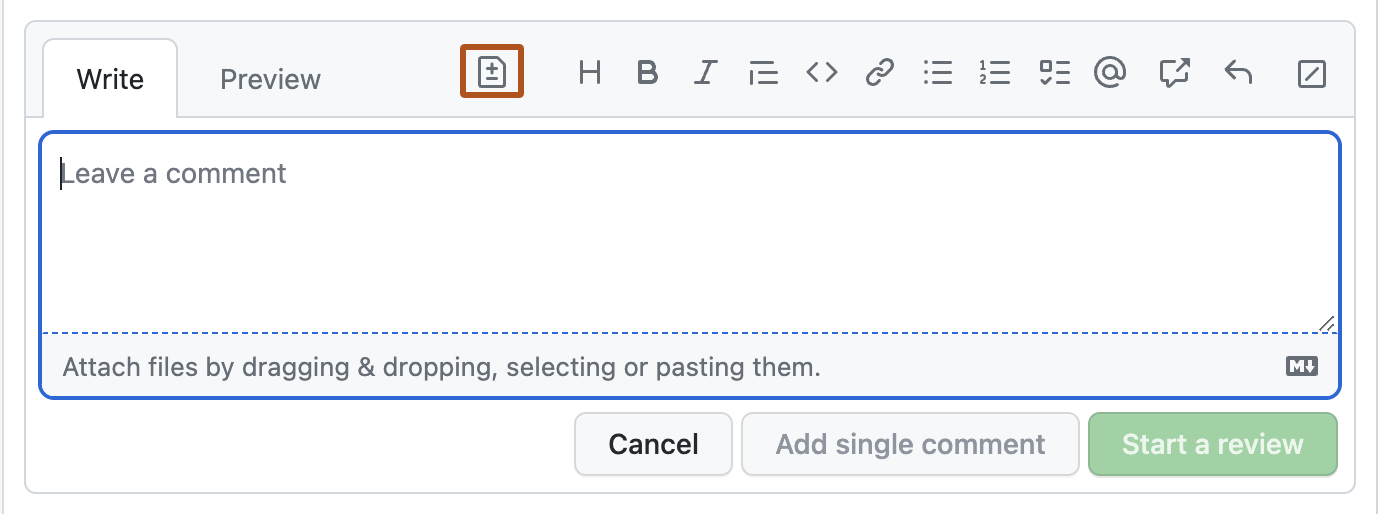
8. To comment directly on a file, to the right of the file, click and type your comment.

9. When you're done:
* If you only want to add this **one comment**, click **Add single comment**.
* If you want to add **multiple comments**, click **Start a review**, then continue adding comments.
When you're finished, click **Finish your review**, leave a summary of your review, and click **Submit review**.
Anyone watching the pull request or repository will receive a notification of your comments. Batching your comments avoids sending multiple notifications.
If you are commenting on a pull request created by Copilot, batching your comments prevents Copilot from starting to work on individual comments before you have completed your review. See [Starting GitHub Copilot sessions](/en/copilot/how-tos/use-copilot-agents/cloud-agent/start-copilot-sessions).
### Resolving conversations
You can resolve a conversation in a pull request if you opened the pull request or if you have write access to the repository where the pull request was opened.
To indicate that a conversation on the **Files changed** tab is complete, click **Resolve conversation**.
The entire conversation will collapse and be marked as resolved. This makes it easier to find conversations that still need to be addressed.
If the suggestion in a comment is out of your pull request's scope, you can open a new issue that tracks the feedback and links back to the original comment. See [Creating an issue](/en/issues/tracking-your-work-with-issues/using-issues/creating-an-issue#creating-an-issue-from-a-comment).
#### Discovering and navigating conversations
You can discover and navigate to all the conversations in your pull request with the **Conversations** menu on the **Files changed** tab.
In this view, you can see which conversations are unresolved, resolved, and outdated. This makes it easy to discover and resolve conversations.

## Further reading
* [Writing on GitHub](/en/get-started/writing-on-github)
* [Reporting abuse or spam](/en/communities/maintaining-your-safety-on-github/reporting-abuse-or-spam)