# Cherry-picking a commit in GitHub Desktop
You can use GitHub Desktop to pick a specific commit on one branch and copy the commit to another branch.
## About Git cherry-pick
You can cherry-pick a commit on one branch to create a copy of the commit with the same changes on another branch. If you commit changes to the wrong branch or want to make the same changes to another branch, you can cherry-pick the commit to apply the changes to another branch. You can also use cherry-picking to apply specific changes before you are ready to create or merge a pull request. For example, if you commit a bug fix to a feature branch, you can cherry-pick the commit with the bug fix to other branches of your project.
You can also use cherry-picking when collaborating with a team. Some projects incorporate contributions by cherry-picking commits. For more information, see [Distributed Git - Maintaining a Project](https://git-scm.com/book/en/v2/Distributed-Git-Maintaining-a-Project#_rebase_cherry_pick) in the Git documentation.
## Cherry-picking a commit
1. In GitHub Desktop, click ** Current Branch**.

2. In the list of branches, click the branch that has the commit that you want to cherry-pick.
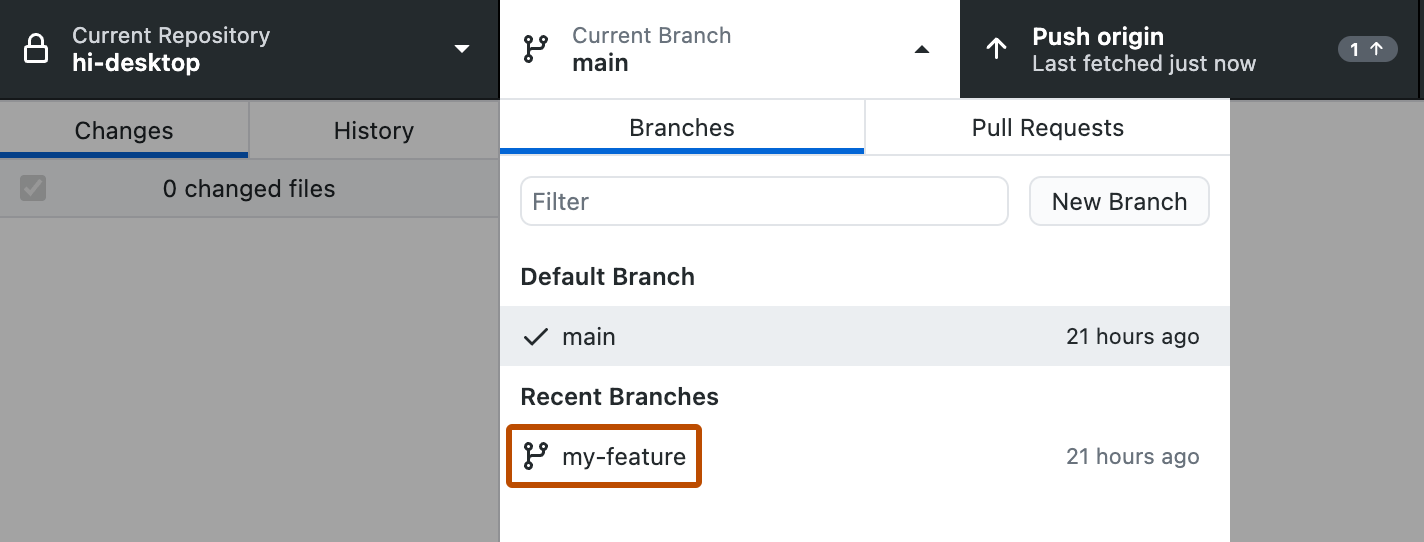
3. In the left sidebar, click **History**.

4. Select the commit you would like to cherry-pick.
You can select one commit or select multiple commits using Command or Shift.
You can select one commit or select multiple commits using Ctrl or Shift.
5. Right-click the selected commit and click **Cherry pick commit**, then select the branch that you want to copy the commit to. You can also drag the commit that you want to cherry-pick from the "History" tab to the ** Current Branch** dropdown menu, then drop the commit on the branch that you want to copy the commit to.

6. The current branch changes to the branch onto which you cherry-picked the commit. You can now push the cherry-picked commit to the remote repository.
## Further reading
* [git-cherry-pick](https://git-scm.com/docs/git-cherry-pick) in the Git documentation
* [Options for managing commits in GitHub Desktop](/en/desktop/managing-commits/options-for-managing-commits-in-github-desktop)